
Step 1
Open the HeliQore website
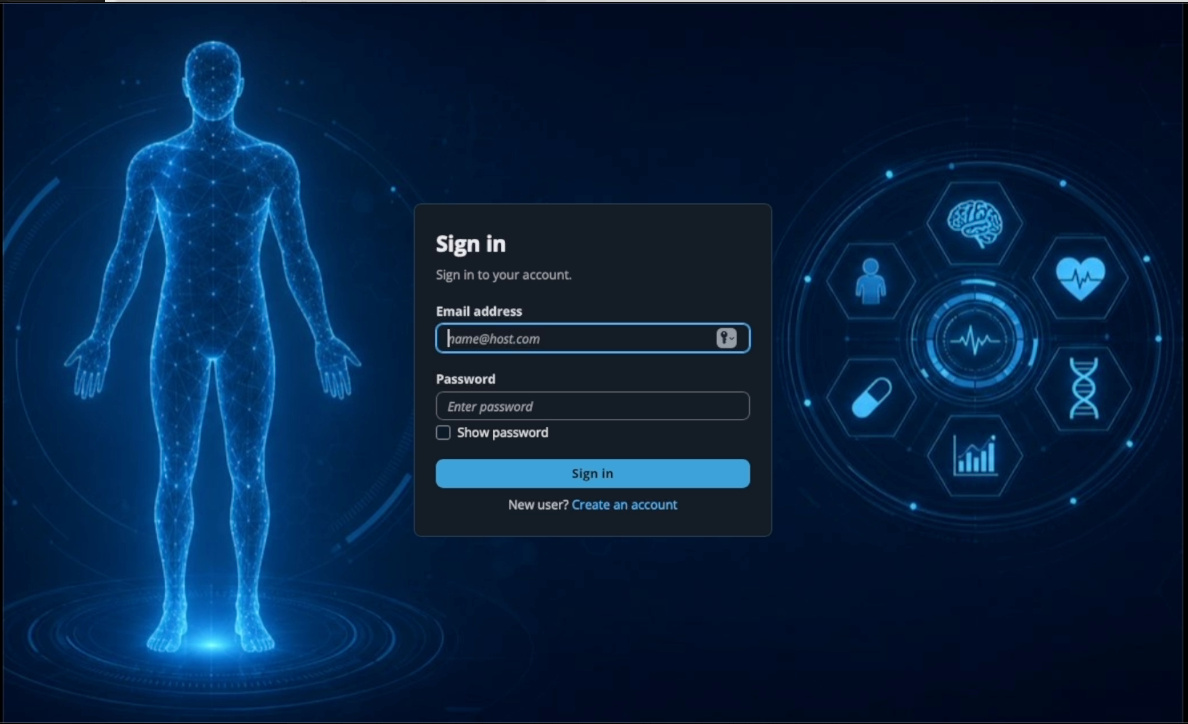
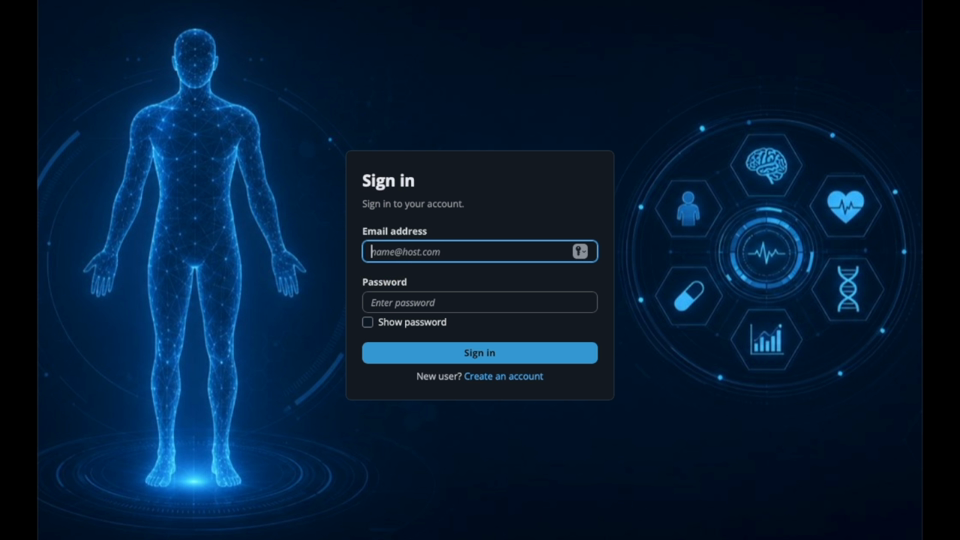
Open your web browser and go to transcribe.heliqore.com. When the sign-in page appears, select Create an account.
Getting Started with HeliQore
Use this visual written tutorial to create, verify, and secure your HeliQore account. Prefer video? Watch the video guide.
Have access to the email address you want to use for HeliQore and keep your mobile phone or authenticator app nearby. HeliQore requires two-factor authentication for account security.
Step 1
Open your web browser and go to transcribe.heliqore.com. When the sign-in page appears, select Create an account.
Step 2
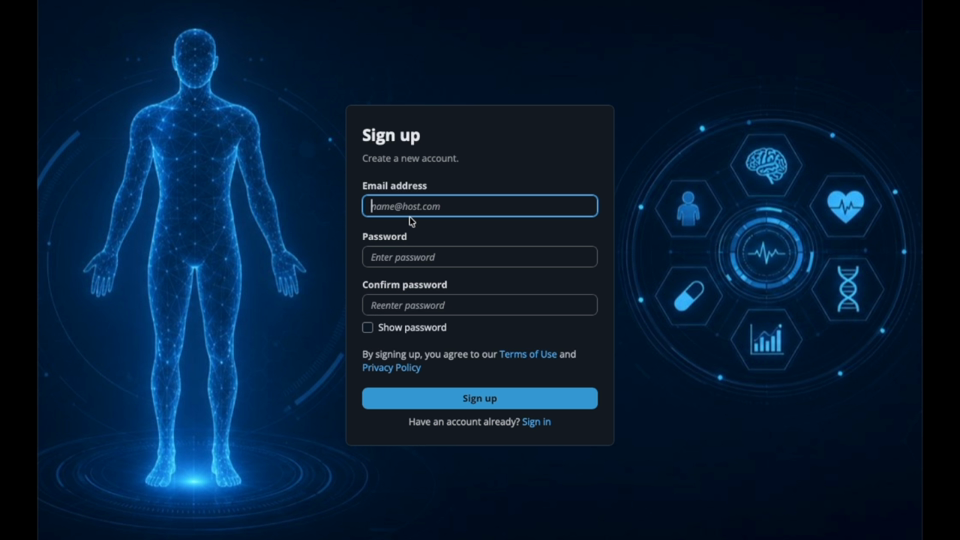
Enter your email address, then create a password that is at least 14 characters long and includes a number, lowercase letter, uppercase letter, and special character. Re-enter the password to confirm it.
Review the Terms of Use and Privacy Policy, then select Sign up.
Step 3
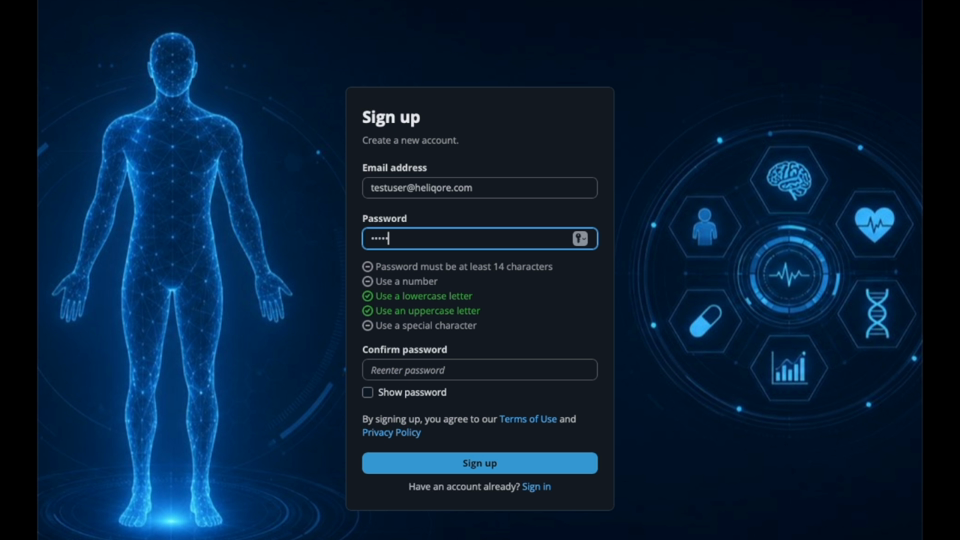
As you type, HeliQore shows which password requirements have been met. Confirm that every requirement is satisfied before submitting the form.
Step 4
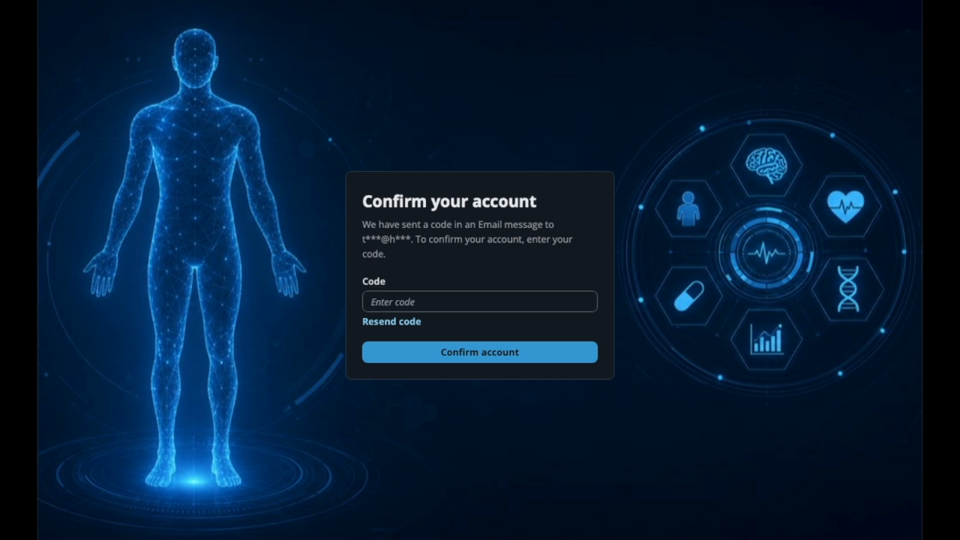
HeliQore will send a confirmation code to your email address. Open the email, copy the code, and enter it in the Code field. Select Confirm account.
If you do not receive the email, select Resend code.
Step 5
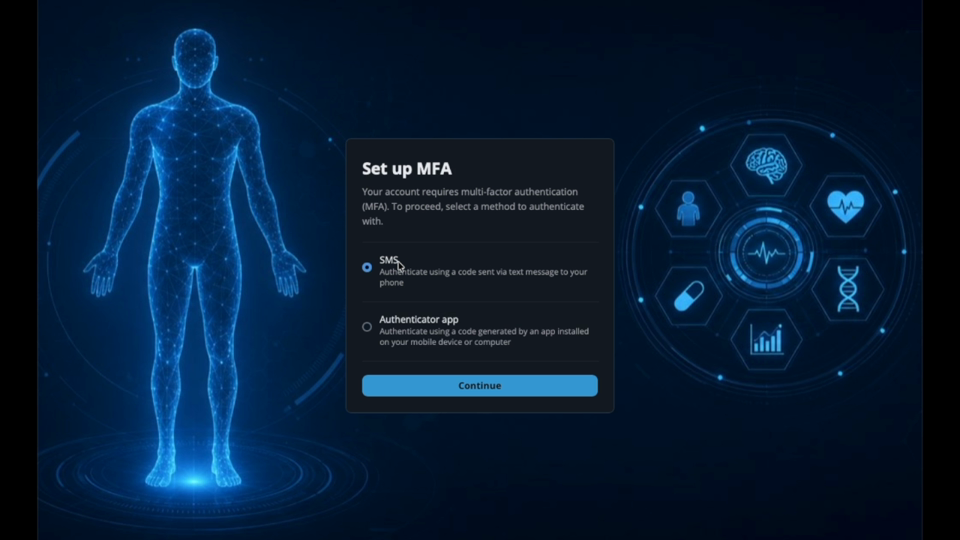
Select a multi-factor authentication method. This example uses SMS MFA. An authenticator app is also available.
Step 6
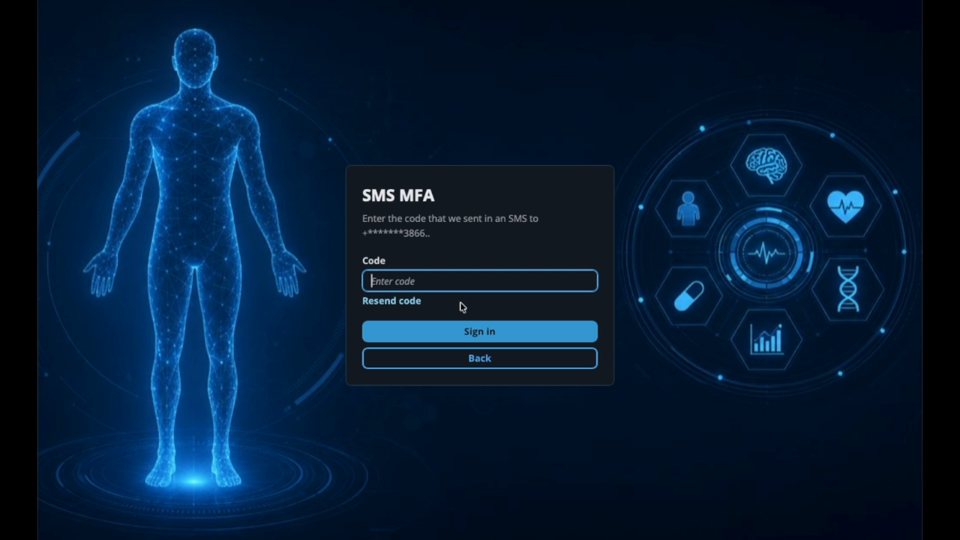
If you selected SMS MFA, enter your mobile phone number including the country code, then select Send code.
When the text message arrives, enter the verification code and select Sign in.
Step 7
After MFA verification, HeliQore signs you in and takes you to the Dashboard.
Step 8
The Dashboard confirms that your account is active and ready to use.
Create Your HeliQore Account Watch the video guide
Need help? Visit HeliQore Support.