
Step 1
Open the Transcribe page
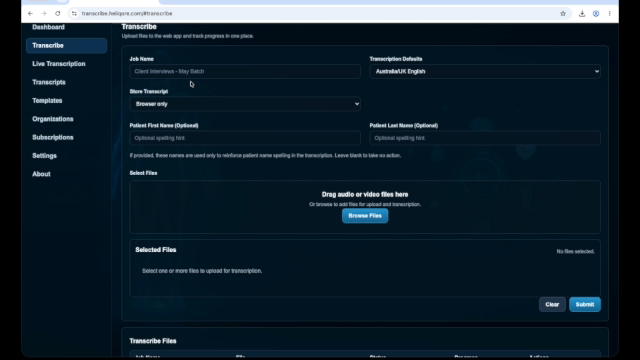
After signing in, select Transcribe from the navigation menu. HeliQore opens the workspace where you can create and monitor transcription jobs.
Transcription Workflow
Follow this visual written tutorial to upload an audio or video file, choose transcription settings, monitor progress, and review the completed transcript. Prefer video? Watch the video guide.
Sign in to HeliQore and have the audio or video file you want to transcribe ready. Before uploading, confirm that your use of patient and confidential information complies with your organisation’s privacy and data-protection requirements.
Step 1
After signing in, select Transcribe from the navigation menu. HeliQore opens the workspace where you can create and monitor transcription jobs.
Step 2
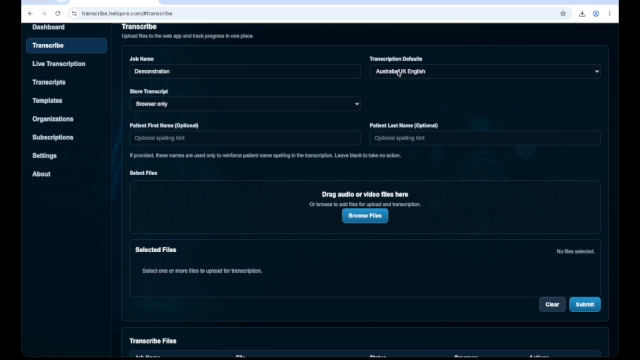
Enter a name for the transcription job. Choose the appropriate transcription language or default; in this example, the setting is Australia/UK English.
If required, set how long the transcription should be stored. You can also enter the patient’s first and last name as optional spelling hints. These details help reinforce spelling in the transcript.
Step 3
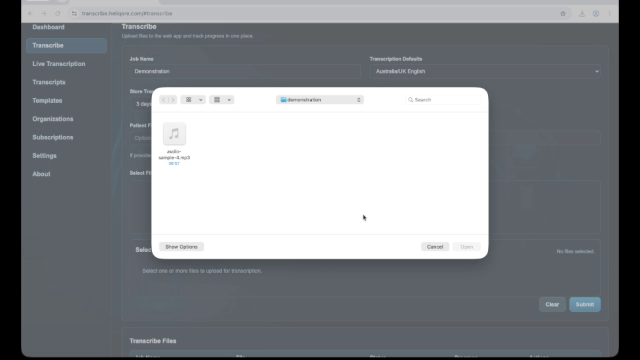
Under Select Files, choose Browse Files, or drag an audio or video file into the upload area. Select the file you want to transcribe, choose Open, and confirm that it appears under Selected Files.
Step 4
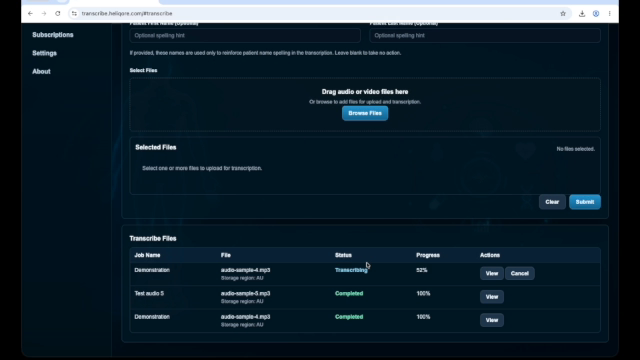
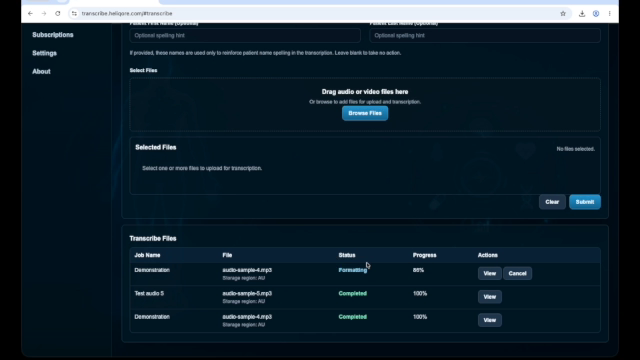
When the file is ready, select Submit. The file appears in the transcription list, where HeliQore displays the job name, file name, status, and progress percentage.
Step 5
While HeliQore is working, the status may show Transcribing or Formatting. Monitor the progress and do not close the page until processing is complete.
When the status changes to Completed and progress reaches 100 percent, select View.
Step 6
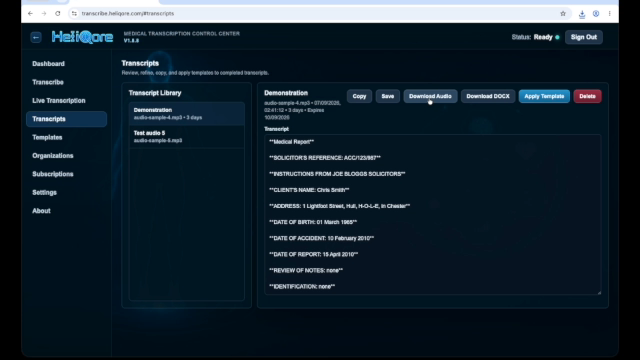
The completed transcript opens in the Transcripts section. Select the transcript from the Transcript Library to review its contents.
From here, you can copy or save the transcript, download the converted audio, download a DOCX document, or apply a template.
The audio or video file has now been transcribed in HeliQore. Before sharing the transcript, review it carefully and confirm that sensitive patient information is handled according to your organisation’s privacy requirements.
Open HeliQore Watch the video guide
Need account setup help? Read the account creation tutorial.